Friday, January 16, 2026

RTL-SDR - radio waves on Your computer

One day I thought to myself that I’d like to listen to “classic” radio - the kind one where you dial in the frequency and adjust the antenna, not something streamed over the internet. And instead of using a traditional receiver (which I don’t own), I chose an RTL-SDR from that site: https://www.rtl-sdr.com/about-rtl-sdr/

I chose the kit that comes with antennas (https://www.rtl-sdr.com/buy-rtl-sdr-dvb-t-dongles/) and followed the software installation instructions (https://www.rtl-sdr.com/rtl-sdr-quick-start-guide/).

Below there is a step-by-step list of what you need to do to listen to traditional radio using your computer.

Installing software

Step 1. Go to https://airspy.com/download/ and download Software Defined Radio Package.

This is an application that will decode radio waves into sound. It's name is SDR# (SDRSharp). Please note that if You use top download button for downloading Software Defined Radio Package You will download 32-bit version of the software. This may be important if You plan to install additional plugins.

Step 2. Unpack downloaded .zip file to the desired location:


Step 3. As an administrator run the install-rtlsdr.bat. That script will download a driver for Your RTL-SDR dongle with a small application named Zadig which will be used to install that diver in Windows.


Step 4. First plug in Your RTL-SDR dongle in the USB then as an administrator run zadig.exe. Then make sure that below options are changed in Zadig:
  • List all devices - make it checked
  • Ignore Hubs or Composite Parents - make it unchecked


Step 5. Select proper device/interface in Zadig:


Make sure that proper device/interface is selected and WinUSB driver will be installed. Then press Install Driver:


Listening FM radio


Step 1. We will try to listen traditional FM radio (frequency range 88 - 108 MHz). Make sure Your RTL-SDR dongle is plugged into USB. Set the antenna included with the kit as a dipole with 70 cm per arm, and mount the whole thing vertically. Make sure that antenna is attached to RTL-SDR:


Step 2. Start SDR# using SDRSharp.dotnet8.exe. After start You have to select the RTL-SDR dongle to be used:


Step 3. Finally listening. 

You have to press play button, but when You press it without some changes in the software You will hear nothing. Here is what needs to be changed (marked red square):
  1. Manually set the desired frequency.
  2. Set NFM for bandwidth.
  3. Make sure that Your RTL-SDR dongle is used as source
  4. Most important: set RF Gain somewhere near the middle
  5. Press Play button and enjoy:

Wednesday, October 08, 2025

Gather all hammers inside toolbox - version 3

Whenever I decide to get back into programming after a longer break, I often find myself wondering how to set up the tools again. What has changed since last time? Does everything still install the same way as it used to?

This is the third post on this topic — the first one was written back in 2009 and can be found here, while the second one came out in 2019 and is available here. Let’s see what has changed since then.

Our goal remains the same — to build applications in Java. And we want to quickly set up all the essential tools we’ll need for that:

  1. Java JDK
  2. IDE
  3. Git
  4. Maven

As before, all things will be installed in C:\Development. 

After installing the tools, we’ll go classic and create a simple "Hello World" project using the installed JDK - with the code safely managed under Git version control.

Installing Java


This is where things have changed the most. We used to have a free JDK from Sun, then from Oracle — all nice and simple — until version 1.8, when commercial licensing entered the picture. Fortunately, free alternatives are still around, such as OpenJDK from Oracle or Amazon Corretto from… Amazon, of course :) And let's use JDK from Amazon.

Step 1: Download zip for Windows 64 from here.
Step 2: Create directory C:\Development\Java\AmazonJDK\Java25_64bit and extract downloaded zip there:


Step 3: After extract create/edit system variable named JAVA_HOME with value C:\Development\Java\AmazonJDK\Java25_64bit then modify Path system variable by adding %JAVA_HOME%\bin at the end.


Step 4: Verify Java installation by opening command line and type java -version and javac -version. You should see informationa about Java installed:


Installing IDE


Step 1: Create directory C:\Development\Jetbrains\Idea

Step 2: Download and install application named JetBrains Toolbox from here. If you have a JetBrains account, sign in to it from within the installed application — this way, if you already own a license for any of the tools, everything will activate automatically without any extra steps.

Step 3: In the Toolbox application, point to the default installation path you created in step 1 for all your development tools.


Step 4: Choose IntelliJ IDEA (Community for free or Ultimate if You have licene) and install it. It will be installed in the path from step 1.

Installing GIT


Step 1: Download Git for Windows from here

Step 2: Run the downloaded git installer and choose directory C:\Development\Git as the installation target. Then You can leave all options default, but I changed some of them, i.e I want to use my Notepad++ editor as default (not VIM), I do not want to use credential manager (I want to type password every time)


Step 3: Verify installation and basic configuration.

Open command prompt and execute command git --version to see if git responds. After that configure user and email by typing commands (replace XYZ with Your value):

git config --global user.name "XYZ"
git config --global user.email "XYZ"

Below is an example of running all these commands in action:


Installing Maven


Maven will be used for dependency managment, building and running future apps. Idea comes with bundled Maven, so we do not have install our version. But similar to installing Java, we will install our own version of Maven.

Step 1: Create directory C:\Development\Maven. Then download Maven (binary zip archive) from here and unpack it to the created directory.

Step 2: Create directory C:\Development\Maven\repository for artifacts downloaded by Maven:

Step 3: Tell Maven to use created above directory as a repository. Locate Maven settings file named settings.xml and add a line inside:


Step 4: Add Maven's bin folder to the system PATH variable in order to use maven commands from console.


Step 5: Verify if Maven is installed correctly. Open command line and execute command: mvn --version. You should see similar information:


Hello World in Java using above tools

We’ve got JDK, IDE, Maven, and Git all set up. Now let’s create a sample application that puts all these tools to good use.

Step 1: Open Intellij and create a new Java project. Give it a name HellWorld, make it controlled by Maven, and select our installed JDK:


Step 2: Open generated project and run its main class by clicking green play button as seen on below screen:


In the console, you can see that the project is being compiled and executed using our JDK.

Step 3: Let’s put this project under Git version control. 

First we have to tell where is our Git installed - just open settings, type in Git and chose already installed Git. InteliJ will automatically autodetect the path, just click Test button to display installed version:


Next, we need to add our project to a local Git repository. We do this by running the git init command in the project’s source directory. There are two ways to do it:

  • Open the project folder in Windows Explorer, right-click inside it, and choose "Open Git Bash here" or
  • Run the same command directly from the IntelliJ terminal.

Let’s go with the second option — but first, let’s make sure IntelliJ uses Git Bash as its default terminal instead of the standard Windows one (cmd.exe). Open settings again and find settings for Terminal:


After apply just open the terminal and run git init command there:


That all. Project is fully set up and saved in local Git repository.

Friday, April 08, 2022

Git for Windows - tips

Some time ago I described how to install Git For Windows and how to use it in IntelliJ Idea. See here for details. I realised that from time to time I go back to those things:

  • modifying git config files and trying to find them
  • working with passwords
  • using different editor for commit message

Let's take a closer look.

Modifying git config files and trying to find them.

Git uses three different config files (usually named .gitconfig) at three different levels: 

System


Location: [your_git_for_windows_instalation_path]/etc/.gitconfig or  [your_git_for_windows_instalation_path]/mingw64/etc/.gitconfig.  

Purpose: contains values applied to every user on the system and all their repositories. If we want to read/write from/to this file we have to pass --system option. Because this is a system configuration file, you may need superuser privilege to make changes to it.


Global


Location: [windows_user_directory]/.gitconfig

Purpose: contains values applied to certain (usually logged in) user on the system and all repositories this user works with. If we want to read/write from/to this file we have to pass --global option.


Project


Location: [project_directory]/.gitconfig

Purpose: contains values applied to certain project. If we want to read/write from/to this file we have to pass --local option, or use no option. When changing values in certain project/git repository we have to execute this command being located in that project.

Working with passwords.


During installation process Git For Windows offers to install Git Credential Manager (GCM) - a tool for storing passwords in a secured way. 

But what if want to enter password every time when we push/pull code from remote repository? We can select "None" when Git installer asks for manager. But what if we already installed it and we want to remove it? We have to entirely remove below entry from system config file:  

[credential] 
    helper = manager

Git will start to ask for passord every time, but it will do it using OpenSSH popup window. If we want to disable it in order to enter password directly from command line (or in terminal window in IntellJ), we have to add empty entry for system config file by executing this command: 

git config --system core.askpass ""

If You really want to not to enter password every time during pull/push  with remote repository it is better to use SSH keys.

Using different editor for commit message.


By default Git For Windows offers to install vim as a default editor for commit messages. It is XXI century, we have many great editors under Windows, so do not do this mistake and do not install this archaic editor for linux geeks ;) Why? Let's demonstrate it with example.

1. We have a "Hello World" java application maintained by Git:


2. When we commit changes and in the commit command we pass commit message, we will not find any issues with the vim:


3. But let's use a commit command where no commit message is passed and we expect an editor to open and let us put message there. W use git commit command without "-m" option:


As we see vim is opened in the terminal and after start insertion mode (press Insert) we can type in commit message. Now we have to save the commit message. As You know we have to press Esc in vim to exit insert mode and type something like :wq!. 

Good luck :) When You press Esc focus is switched to the Main.java file instead of terminal where vim is opened. It is a known issue in IntelliJ when using Git in its terminal: https://stackoverflow.com/questions/67848200/how-do-i-commit-a-git-message-in-intellijs-terminal

In short: You have to change Esc key binding to switch focus under IntelliJ (assign different key not only remove Esc). Or if You have luck and do left-click (on some area different than file edit window) with Esc, You may sooner or later exit from insert mode:


After typing :wq! we see that commit is complete with our message:


You can now say: "What a problem, just change this binding if You still want to use git from terminal.  Or just use excellent graphic integration with git from IntelliJ". I would say: "Maybe it is high time use excellent external editor which I use every day instead of archaic one which I have to configure in unusual way".

4. Solution: use external editor instead of vim (here I will use Sublime).

First we define default editor in git system config file using this command:

git config --system core.editor "'C:/Dodatkowe/Sublime/subl.exe' -w"

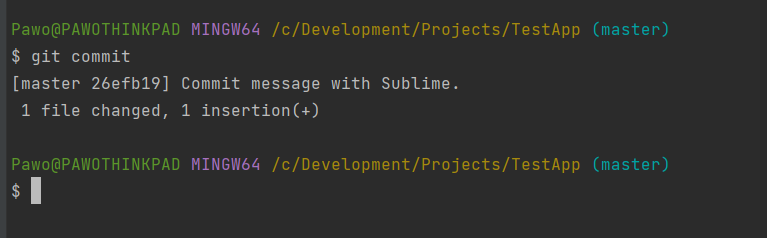
Now we check if there are any entries about core.editor in global config file and specific project config file (which may override system setting). If  we find any, remove them. Now let's try to use Sublime as editor:


After typing in git commit Sublime editor is opened in new window, where we can type in our commit message. Please notice what IntelliJ displays in terminal: 

hint: Waiting for your editor to close the file...

Yes, it is wating until You save the file and close Sublime (when using vim it is also display this message, but exiting there is harder ;)). So lets save the file by Ctrl+S and close the Sublime:


It works without changing anything in IntelliJ.


Tuesday, August 24, 2021

Java Maven project error: Source option 5 is no longer supported. Use 6 or later.

Problem:


Suppose we are building an application from scratch based on Maven and JDK 11 and our pom.xml file contains nothing but groupId/artifactId/version information. An attempt to compile will end with an error as in the title.

The same thing will happen if we have an application in Java 1.5 (yes, it happens...) and we try to upgrade JDK version to e.g. 1.8 or 11. Changing Java version in the project and trying to compile will also end with this error.

Requirements:

  • installed IntelliJ, JDK and Maven as described here. We need Java 11 to be installed.

Solution:


Let's try to repeat this mistake by creating simple "Hello World" application wchich is based on Maven and uses JDK 11 from Amazon:


Now let's try compiling it with Maven using the "mvn clean package" command in terminal (You can also do it by clicking in Idea's Maven window):


Tip: if you're wondering why I have such nice colors in the terminal, let me remind you that I set up the Idea terminal to use Git Bash underneath (described here). However when You use standard Windows Terminal (cmd.exe) or Windows PowerShell as a Terminal underneath colors also work.

We can observer compilation error with message marked in red rectangle. Why does this happen? 
  • Maven uses "maven-compiler-plugin" to do the job, even if we don't have this plugin explicitly written into pom.xml
  • this plugin (3.1.0) by default tries to set source and target bytecode version to 1.5 even if we set our project to use JDK 11:


Solution: 
  • change the plugin version to a newer one - just add the plugin into the pom.xml explicitly
  • set the source and target to 11 in the pom.xml. 
Why explicitly set version to 11? Because without explicitly setting them, newer plugin (from 3.6.0) will use 1.6 as default. Compilation is OK now but language level is set to 1.6 even we can use 11 as our JDK:


So, to set up everything together (plugin and language) just put those in pom.xml: 
    <properties>
        <maven.compiler.source>11</maven.compiler.source>
        <maven.compiler.target>11</maven.compiler.target>
    </properties>

    <build>
        <pluginManagement>
            <plugins>
                <plugin>
                    <groupId>org.apache.maven.plugins</groupId>
                    <artifactId>maven-compiler-plugin</artifactId>
                    <version>3.8.1</version>
                </plugin>
            </plugins>
        </pluginManagement>
    </build>

You can also put information about source and target language directly into the plugin instead of  defining properties:

    <build>
        <pluginManagement>
            <plugins>
                <plugin>
                    <groupId>org.apache.maven.plugins</groupId>
                    <artifactId>maven-compiler-plugin</artifactId>
                    <version>3.8.1</version>
                    <configuration>
                        <source>11</source>
                        <target>11</target>
                    </configuration>
                </plugin>
            </plugins>
        </pluginManagement>
    </build>
From JDK 1.9 and above plugin can also be configured using <release> option:

    <build>
        <pluginManagement>
            <plugins>
                <plugin>
                    <groupId>org.apache.maven.plugins</groupId>
                    <artifactId>maven-compiler-plugin</artifactId>
                    <version>3.8.1</version>
                    <configuration>
                        <release>11</release>
                    </configuration>
                </plugin>
            </plugins>
        </pluginManagement>
    </build>
Fortunately, when you create a new maven-based project from scratch in Idea, it (based on the selected JDK) automatically places the appropriate source and target for the language level in pom.xml (using <properties>).

Tuesday, August 10, 2021

Chargers, cables, standards - everything matters

 The story:

Some time ago I tried to charge my powerbank (20000 mAh). I just grab "no-name" charger and some "no-name" cable and start to charge. I took all night to charge it from 0 to 100%. I though this is normal, big powerbank, long time. Later, I tried to charge the same powerbank from 0 to 100% using the same "no-name" charger but with better (let's say "branded") cable. And the charging time was significantly better. I decided to use  "branded" charger and "branded" cable and charging from 0 to 100% again. And it was faster than in previous two trials. So I started to read about charging standards, how cable can affect the process and so on. 

The theory:

We have "USB standards" and "prioprietary specifications" in terms of charging. 

USB standards are:

1. Standard USB port i.e. in PC

When connected and transferring data we can charge devices with different power depend on USB type:

  • USB 1.0 gives 0.1A with 5V which gives 0.5W
  • USB 2.0 gives 0.5A with 5.0V which gives 2.5W (from 2000)
  • USB 3.0 gives 0.9A with 5.0V which gives 4.5W (from 2008)
  • USB Type-C gives 1.5A/3.0A with 5.0V which gives 7.5/15.0W (from 2014)

2. Battery Charging (BC) 1.1/1.2

In year 2000 and up USB 2.0 with its 2.5W was not enough. In 2007 a Battery Charging 1.1 (BC 1.1) specification was released. It defined three new types of ports:

  • Standard Downstream Port (SDP) - USB 2.0 compatible in terms of power (2.5W)
  • Dedicated Charging Port (DCP) - does not support data transfer, used only for charging. Support max 1.5A with 5.0V which gives max 7.5W
  • Downstream Port (CDP) - allows both data transfer like USB 2.0 and charging like DCP

In 2010 a Battery Charging 1.2 (BC 1.2) specification was released, where 1.5A was increased to 5A, which gives max 25W using 5.0V. 

3. Power Delivery (PD) 1.0/2.0/3.0

In 2012 Power Delivery 1.0 specification was released. It introduces so called source profiles:

  • 5.0V with 2.0A which gives 10W (profile 1)
  • 12.0V with 1.5A which gives 18 W (profile 2)
  • 12.0V with 3.0A which gives 36 W (profile 3)
  • 20.0V with 3.0A which gives 60W (profile 4)
  • 20.0V with 5.0A which gives 100W (profile 5) 

In 2014 Power Delivery 2.0 specification was released (as a part of USB 3.1 and USB Type-C). Comparing to PD 1.0, 12V is gone and 9V and 15V are introduced. Source profiles no longer exist - they were replaced by power rules. Power rules keep fixed voltage but allow to negotiate current level, which gives different power level: 

  • 5.0V with 0.1A - 3.0A which gives 0.5W - 15W (rule 1)
  • 9.0V with 1.67A - 3.0A which gives 15W - 27W (rule 2)
  • 15.0V with 1.8A - 3.0A which gives 27W - 45W (rule 3)
  • 20.0V with 2.25A - 3.0A / 3.0A - 5.0A (using rated cable) - 45W - 100W (rule 4)

In 2018 Power Delivery 3.0 specification was released. It does not change power rules introduced in PD 2.0 but adds some features like Programmable Power Supply (PPS) which allows configure voltage in 20mV granular increments.

4. Prioprietary specifications

  • Qualcomm Quick Charge (QC 1.0/2.0/3.0/4.0/4+)
  • MediaTek Pump Express
  • Samsung Adaptive Fast Charging
  • Oppo VOOC (named Dash Charge/Warp Charge on OnePlus devices and Dart Charge on Realme devices)
  • Huawei SuperCharge

The test:

Lets have a look how it looks like in real life. I will charge those devices:

  • Tablet Lenovo Tab2 A10-70L
  • Xiaomi YDDYP01 20000mAh power bank
  • Xiaomi Redmi 5 Plus smartphone
  • Xiaomi POCO X3 NFC smartphone
  • Aukey PB-XD26 26800mAh power bank
  • Sony Xperia 10 III smartphone

I will use chargers:

  • Aukey PT-Y11 wall charger which have to ports: USB-A supports Quick Charge 3.0 (18W) and USB-C supports Power Delivery 3.0 (30W). 
  • Xiaomi POCO X3 stock charger delivered with the phone.
  • Sony Xperia 10 III stock charger delivered with the phone.

I will use cables: 

  • 1m Aukey USB-A/micro-USB
  • 1m Aukey USB-A/USB-C
  • 1m Aukey USB-C/USB-C (rated for 100W for PD 3.0)

I will use testers:

  • Fnirsi FNB28 for USB-A
  • Fnirsi FNC88 for USB-C

Results:

1. Lenovo Tab2 A10-70L 

Connection: Aukey PT-Y11 USB-A -> Fnirsi FNB28 -> USB-A/micro-USB -> Lenovo Tab2 A10-70L

Power measured: 10W


I cannot find if it is compatible with any proprietary specification, but 10W suggests it is Qualcomm QC 1.0. Tester does not recognize it as Qualcomm QC 1.0, intstead it showh Batery Charge 1.1 DCP standard.

2. Xiaomi YDDYP01 20000mAh

Connection: Aukey PT-Y11 USB-A -> Fnirsi FNB28 -> USB-A/micro-USB -> Xiaomi YDDYP01 20000mAh. 

Power measured: 18W


Accroding to this device specification it is compatible with Qualcomm QC 2.0 and tester recognizes it indeed as Qualcomm QC 2.0 12V

3. Xiaomi Redmi 5 Plus (smartphone was initially charged about 30% during the test) 

Connection: Aukey PT-Y11 USB-A -> Fnirsi FNB28 -> USB-A/micro-USB -> Xiaomi Redmi 5 Plus

Power measured: 14W


 The device is based on Qualcomm Snapdragon 625 which is in theory Qualcomm QC 3.0 compatible (according to specification of this chipset). However tester recognizes it as Qualcomm Quick Charge 2.0 9V, so I suspect that smartphone manufacturer "downgraded" charging to QC 2.0 in order not to pay higher license fo QC 3.0,

4. Xiaomi POCO X3 NFC (smartphone was initially charged about 85% during each the test) 

Test 1:

Connection: Aukey PT-Y11 USB-A -> Fnirsi FNB28 -> USB-A/USB-C -> Xiaomi POCO X3 NFC

Power measured: 16W


The device is based on Qualcomm Snapdragon 732G which is in theory Qualcomm QC 4+ compatible (according to specification of this chipset). Tester recognizes it as Qualcomm QC 3.0 which is OK because charger is QC 3.0 compatible and QC 4+ device is backward compatible with QC 3.0

Test 2:

Connection: Aukey PT-Y11 USB-C -> Fnirsi FNC88 -> USB-C/USB-C -> Xiaomi POCO X3 NFC

Power measured: 14W

QC 4+ is compatible with Power Delivery (and can give max 27W), so charging with PD port of this charger simply works. However tester recognizes it as Huawei SCP standard.

Test 3:

Connection: Xiaomi stock charger USB-C -> Fnirsi FNB28 -> USB-A/USB-C -> Xiaomi POCO X3 NFC

Power measured: 20W


Xiaomi stock charger has max 27W, so it is QC 4.0 compatible, however tester recognizes it as QC 3.0.

5. Aukey PB-XD26 26800mAh 

Connection: Aukey PT-Y11 USB-C -> Fnirsi FNC88 -> USB-C/USB-C -> Aukey PB-XD26 26800mAh

Power measured: 30W


According to specification of this power bank it is PD 3.0 compatible and its max charging power is 45W. Used charger has max 30W output via its PD port, so charging works with its maximum speed due to charger limit (limited to 30W by charger). However tester does not recognize it as Power Delivery standard.

6. Sony Xperia 10 III

Test 1:

Connection: Aukey PT-Y11 USB-A -> Fnirsi FNB28 -> USB-A/USB-C -> Sony Xperia 10 III

Power measured: 7W


The device is based on Qualcomm Snapdragon 690 5G which is in theory Qualcomm QC 4+ compatible (according to specification of this chipset). But this phone does not support any QC standard (probably due to licensing costs). Moreover stock charger delivered with the phone gives also max 7,5W power.

Test 2:

Connection: Aukey PT-Y11 USB-C -> Fnirsi FNC88 -> USB-C/USB-C -> Sony Xperia 10 III

Power measured: 15W


In theory this Sony phone can take 30W via PD. I have never achieved such value, I was able to get 18W max.

Final notes:

  1. The simple truth is: the more power (W) delivered, the faster charging.
  2. Charged device and charger should be compatible with the same charge standard.
  3. USB cable used for charging must have good quality too. 
  4. Those USB testers used are not always reliable in my opinion:
    • they do not properly recognize charging standards (especially PD, QC 4.0)
    • sometimes I had to connect them second or third time to start charging i.e 18W not 10W. It looks like sometimes "handshake" between charged device and charger with tester plugged in between does not work (or works depending on the connection order...)